Showing posts with label Sharepoint 2010. Show all posts

Thursday, May 29, 2014

Filter OOTB SharePoint ListView web part using IWebPartRow connection Interface and WebControl.

Related Blog

In one of my old blogs I tried to explain the similar thing(Filter OOTB SharePoint ListView web part using IWebPartRow connection Interface.). The purpose of that blog was just show a simple way of using the IWebPartRow connection and a ListView WebPart.

Goal

In the current blog we will try and filter ListView WebPart using Connection object in IWebPartRow. Also there will be a RadioButtonList using which we can drill down the filter.

Create a custom list

  1. Site Actions > View All Site Content
  2. Create new List
  3. Custom List
  4. Name the list "Sample".
  5. Visit list settings and add new column "Year".
  6. Add a few sample data.
  7. Alter the "All Items" and add ID in the view.
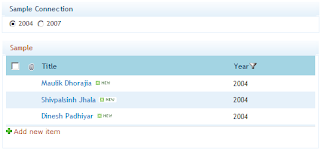
  8. Now the list will look like below given image.

Web part for Conncetion

  1. Open Visual Stuido 2010
  2. Create new project
  3. Select "Web Part". Don't mistake using "Visual Web Part".
  4. Rename the WebPart1 to "SampleConnection".
  5. Use the below given code to be used as a sample.
#region System

using System;
using System.ComponentModel;
using System.Web;
using System.Web.UI;
using System.Web.UI.WebControls;
using System.Web.UI.WebControls.WebParts;
using Microsoft.SharePoint;
using Microsoft.SharePoint.WebControls;
using System.Data;
using System.Collections.Generic;

#endregion

namespace SampleConnection.SampleConnection
{
    [ToolboxItemAttribute(false)]
    public class SampleConnection : WebPart, IWebPartRow
    {

        #region Properties

        /// <summary>
        /// Radiobutton
        /// </summary>
        private RadioButtonList RbtnYear { get; set; }

        /// <summary>
        /// Year
        /// </summary>
        private int XYear
        {
            get
            {
                if (System.Web.HttpContext.Current.Request.QueryString["XYear"] == null)
                {
                    return 0;
                }
                return Convert.ToInt32(System.Web.HttpContext.Current.Request.QueryString["XYear"]);
            }
        }

        /// <summary>
        /// The Data table view for the Schema
        /// </summary>
        private DataTable XTable { get; set; }

        #endregion

        #region Constructor

        /// <summary>
        /// Creates the Schema of the table to get filtered column
        /// </summary>
        public SampleConnection()
        {
            RbtnYear = new RadioButtonList();
            RbtnYear.Items.Insert(0, new ListItem("2004"));
            RbtnYear.Items.Insert(1, new ListItem("2007"));            
            RbtnYear.RepeatDirection = RepeatDirection.Horizontal;
            RbtnYear.AutoPostBack = true;
            RbtnYear.SelectedIndexChanged += new EventHandler(RbtnYear_SelectedIndexChanged);

            //Create the object
            XTable = new DataTable();

            //Adds the columns which we require for filteration
            DataColumn col = new DataColumn();
            col.DataType = typeof(int);
            col.ColumnName = "Year";
            XTable.Columns.Add(col);

            //Use the columns to be added to get the Values to be filtered
            DataRow row = XTable.NewRow();
            if (XYear == 0)
            {
                row["Year"] = Convert.ToInt32(RbtnYear.Items[0].Value);
            }
            else
            {
                row["Year"] = XYear;            // Year to be filtered                
            }
            XTable.Rows.Add(row);
        }

        #endregion

        #region Events

        /// <summary>
        /// Radio Button Events
        /// </summary>
        /// <param name="sender"></param>
        /// <param name="e"></param>
        void RbtnYear_SelectedIndexChanged(object sender, EventArgs e)
        {
            //URL of the Page
            string _url = System.Web.HttpContext.Current.Request.Url.AbsolutePath;
            _url = string.Format("{0}?XYear={1}", _url, RbtnYear.SelectedValue);

            if (System.Web.HttpContext.Current.Request.QueryString.Count > 0)
            {
                for (int i = 0; i < System.Web.HttpContext.Current.Request.QueryString.Count; i = i + 1)
                {
                    //The xyear
                    if (string.Compare(System.Web.HttpContext.Current.Request.QueryString.GetKey(i), "XYear", true) == 0)
                    {
                        continue;
                    }

                    //Recreate the URL
                    _url = string.Format("{0}&{1}={2}", _url, System.Web.HttpContext.Current.Request.QueryString.GetKey(i), System.Web.HttpContext.Current.Request.QueryString[i]);
                }
            }

            //Send user back to page
            System.Web.HttpContext.Current.Response.Redirect(_url);
        }

        #endregion

        #region Methods

        /// <summary>
        /// Override child controls
        /// </summary>
        protected override void CreateChildControls()
        {
            base.CreateChildControls();

            //Add the radio button control
            this.Controls.Add(RbtnYear);
            RbtnYear.SelectedIndex = 0;
            if (XYear > 0)
            {
                if (RbtnYear.Items.FindByValue(XYear.ToString()) != null)
                {
                    RbtnYear.SelectedValue = XYear.ToString();
                }
            }
        }

        /// <summary>
        /// Connection provider and that assigns the Schema
        /// </summary>
        /// <returns></returns>
        [ConnectionProvider("Row")]
        public IWebPartRow GetConnectionInterface()
        {
            return new SampleConnection();
        }


        #endregion

        #region Implemented property & methods of IWebPartRow

        /// <summary>
        /// Gets data row view for ListView
        /// </summary>
        /// <param name="callback"></param>
        public void GetRowData(RowCallback callback)
        {
            callback(XTable.DefaultView[0]);
        }

        /// <summary>
        /// Schema for the ListView web part
        /// </summary>
        public PropertyDescriptorCollection Schema
        {
            get
            {
                return TypeDescriptor.GetProperties(XTable.DefaultView[0]);
            }
        }

        #endregion
    }
}

How to use?

  1. SharePoint Site > Edit a page.
  2. Click "Add a Web Part".
  3. Top ribbon > List and Libraries > Select "Sample".
  4. Again Click "Add a Web Part".
  5. Top ribbon > Custom > Select "SampleConnection" web part.
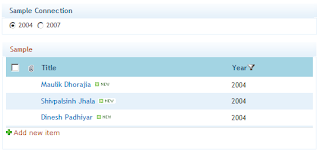
  6. The screen will have now 2 Web Parts. Check out the below given image.
  7. This happens in Edit Mode of page only, so make sure the page is in Edit Mode. Have a look at the image below to select a connection web part.
  8. A box will popup to to select a filter. I will select Year. Click "Finish".
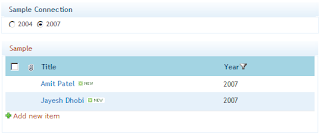
  9. Now to test this stuff. Select the year from the Year from the "Sample Connection" web part.

  10. So this was if a ListView needs filter. If we want to remove it. Just go through step 7 and click "Remove Connection" from the popup box. And the screen will be back to as it was.
Please let me know if this was helpful?

Sharepoint 2010 - Strange blog URL issue with site using Variations(Multilingual site). - REALLY WEIRD ISSUE!

Scenario/Symptoms

  • We have a site with variations. English/Spanish
  • Structure
    • Main Site > en > English Blog(Add 1 or 2 sample blogs)
    • Main Site > es > Spanish Blog(Add 1 or 2 sample blogs)
  • On the "Main Site" we added a "Content Query Web Part". Apply the below given setting.
  • Click on the link of any English blog. IT WORKS FINE!!!
  • Now click on the Spanish blog link. IT SAYS "PAGE NOT FOUND"!!!
  • Another way to get this is.
    • Go to the URL of Spanish blog site.
    • You can find the blogs on the page.
    • Click on the blog link IT SAYS "PAGE NOT FOUND"!!!.
    • Or navigate to "Administrar entradas de blog"(AllPosts.aspx). This page will show all the blogs in the list. Click on the blog link IT SAYS "PAGE NOT FOUND"!!!


Cause

We added a column to the list "Post". Now this small thing was causing the whole havoc.


Solution

There are 3 ways to
  1. Either don't add any column to list "Post". => BAD ONE
  2. Copy SharePoint Designer > Lists > Estrada De Blog and paste it there with name "Post". Don't delete the folder. Just need to duplicate and rename the folder.
  3. Read the blog => Sharepoint 2010 - Solution to blog URL issue with site using Variations(Multilingual site) to see the feature stapler solution for this issue.


Hope this helps. If you have any questions or a better solution, I am all open for it. Thanks for reading the blog.

Sharepoint 2010 - Solution to blog URL issue with site using Variations(Multilingual site).

Issue

Read this blog -> Sharepoint 2010 - Strange blog URL issue with site using Variations(Multilingual site). - REALLY WEIRD ISSUE!

Solution

  • Create a Feature Stapler.
  • Set the event scope as Scope="Site" as the feature.
  • Stapler > Element.xml.
    <?xml version="1.0" encoding="utf-8"?>
    <Elements xmlns="http://schemas.microsoft.com/sharepoint/">
        <FeatureSiteTemplateAssociation Id="edf698b1-30db-4d19-b46b-5efbb5dae9a5" TemplateName="Blog" />
    </Elements>
  • Please use the below given code as a solution for the problem.
#region System
using System;
using System.Security.Permissions;
using Microsoft.SharePoint;
using Microsoft.SharePoint.Security;
using Microsoft.SharePoint.Utilities;
using Microsoft.SharePoint.Workflow;
using Microsoft.SharePoint.Administration;
using System.IO;
using System.Linq;
#endregion

namespace FeatureStapler.VariationBlogSiteEvent
{
    /// <summary>
    /// Web Events
    /// </summary>
    public class VariationBlogSiteEvent : SPWebEventReceiver
    {
        #region Properties

        /// <summary>
        /// The site templates
        /// </summary>
        enum EnmSiteTemplate
        {
            BLOG,    //Blog Site
        }

        /// <summary>
        /// English Language
        /// </summary>
        enum EnmLangugeCode
        {
            English = 1033
        }

        #endregion

        #region Events

        /// <summary>
        /// A site was provisioned.
        /// </summary>
        public override void WebProvisioned(SPWebEventProperties properties)
        {
            base.WebProvisioned(properties);

            try
            {
                SPSecurity.RunWithElevatedPrivileges(delegate
                {
                    //Create a web object
                    SPWeb _web = properties.Web;

                    //Check and apply the settings
                    if (_web.WebTemplate == EnmSiteTemplate.BLOG.ToString() // If the site is a blog site
                        && _web.Language != (int)EnmLangugeCode.English) // Language Selected is not english
                    {
                        // Get the Library with correct folder
                        SPFolderCollection _folderInList = _web.Folders["Lists"].SubFolders;

                        //Find a folder with "post.aspx" & "newpost.aspx"
                        SPFolder _folderBlogNonEnglish = (from _folderX in _folderInList.Cast<SPFolder>()
                                                          let _fName = _folderX.Name
                                                          let _fCount = (from _fileX in _folderX.Files.Cast<SPFile>()
                                                                 where string.Compare( _fileX.Name , "post.aspx" , true ) == 0
                                                                select _fileX).Count()
                                                          where _fCount > 0
                                                          select _folderX).FirstOrDefault();

                        //So if any folder this properties exists
                        if (_folderBlogNonEnglish != null)
                        {
                            //The folder where file is going to come
                            SPFolder _folderBlogInEnglish = _folderBlogNonEnglish.ParentFolder.SubFolders.Add("Posts");
                            _folderBlogInEnglish.SubFolders.Add("Attachments");
                            _folderBlogInEnglish.SubFolders.Add("Post");

                            //Copy the files to new folder
                            foreach (SPFile _file in _folderBlogNonEnglish.Files)
                            {
                                _file.CopyTo(string.Format("{0}/{1}/{2}", _web.Url, _folderBlogInEnglish.Url, _file.Name), true);
                                ////Add a file
                                //_folderBlogInEnglish.Files.Add(_file.Name, File.OpenRead(_file), true);

                                // Commit 
                                _folderBlogInEnglish.Update();
                            }
                        }                       
                    }

                });
            }
            catch (Exception Exc)
            {
                SPDiagnosticsService.Local.WriteTrace(0, new SPDiagnosticsCategory("VariationBlogSiteEvent", TraceSeverity.Unexpected, EventSeverity.Error), TraceSeverity.Unexpected, Exc.Message, Exc.StackTrace);
            }
        }

        #endregion

    }
}


Hope this helps. If you have any questions or a better solution, I am all open for it. Thanks for reading the blog.

Thursday, September 20, 2012

Override Content Query Webpart to do on the run filteration.

Problem

In one of my recent project I had a challenge of filtering the data with localization.
The project contained 2 languages, English and Spanish. I was trying to find out the out of the box way to get this done, but no help was available.


Solution

  1. Create a new empty project in Visual Studio 2010.
  2. Add a webpart to the project. "Webpart" not "Visual Web Part".
  3. Replace the Webpart class inherited and make it "Microsoft.SharePoint.Publishing.WebControls.ContentByQueryWebPart".
  4. Please have a look at the code below. It will have on the fly list settings and field settings applied to the webpart.
  5. Build your code and deploy it. It should work.


Source Code


#region System
using System;
using System.ComponentModel;
using System.Web;
using System.Web.UI;
using System.Web.UI.WebControls;
using System.Web.UI.WebControls.WebParts;
using Microsoft.SharePoint;
using Microsoft.SharePoint.WebControls;
#endregion

// Create the Toolbar
namespace ToolBar.ToolBar
{
    [ToolboxItemAttribute(false)]
    public class ToolBar : Microsoft.SharePoint.Publishing.WebControls.ContentByQueryWebPart
    {
        #region Properties

        /// <summary>
        /// Root Site Name
        /// </summary>
        private string SiteUrl { get { return SPContext.Current.Site.RootWeb.Url; } }

        /// <summary>
        /// List Name
        /// </summary>
        private string ListName { get { return "ToolBar"; } }

        /// <summary>
        /// List of Url
        /// </summary>
        private string ListUrl
        {
            get
            {
                return string.Format("{0}/Lists/{1}/AllItems.aspx", SiteUrl, ListName);
            }
        }

        #endregion

        #region Methods

        /// <summary>
        /// On Page Load
        /// </summary>
        /// <param name="e"></param>
        protected override void OnInit(EventArgs e)
        {
            //On Load
            base.OnLoad(e);

            //General Settings
            this.AllowConnect = true;
            this.ShowUntargetedItems = false;
            this.AllowEdit = true;
            
            //this.FrameType = "NONE"; // TODO
            this.ChromeType = PartChromeType.None;
            this.ExportMode = WebPartExportMode.All;
            this.GroupByDirection = SortDirection.Desc;
            this.SortByDirection = SortDirection.Desc;
            
            this.ConnectionID = System.Guid.Empty;
            this.ListId = System.Guid.Empty;

            this.ViewFlag = "0";
            this.GroupingText = "GP Web Parts";
            this.Title = " Tool Bar";
            this.ContentTypeName = "Item";
            this.ItemStyle = "ToolBar";
            this.ServerTemplate = "100";
            this.GroupStyle = "DefaultHeader";
            this.WebUrl = "~sitecollection";
            this.Description = "Displays a dynamic view of content from your site.";
            this.Xsl = "<xsl:stylesheet xmlns:x=\"http://www.w3.org/2001/XMLSchema\" version=\"1.0\" xmlns:xsl=\"http://www.w3.org/1999/XSL/Transform\" xmlns:cmswrt=\"http://schemas.microsoft.com/WebPart/v3/Publishing/runtime\" exclude-result-prefixes=\"xsl cmswrt x\" > <xsl:import href=\"/Style Library/XSL Style Sheets/Header.xsl\" /> <xsl:import href=\"/Style Library/XSL Style Sheets/ItemStyle.xsl\" /> <xsl:import href=\"/Style Library/XSL Style Sheets/ContentQueryMain.xsl\" /> </xsl:stylesheet>";
            this.SampleData = "<dsQueryResponse><Rows><Row Title=\"Item 1\" LinkUrl=\"http://Item1\" Group=\"Group Header\" __begincolumn=\"True\" __begingroup=\"True\" /><Row Title=\"Item 2\" LinkUrl=\"http://Item2\" __begincolumn=\"False\" __begingroup=\"False\" /><Row Title=\"Item 3\" LinkUrl=\"http://Item3\" __begincolumn=\"False\" __begingroup=\"False\" /></Rows></dsQueryResponse>";
            this.ParameterBindings = string.Empty;

            //Root Web
            using (SPWeb _web = SPContext.Current.Site.RootWeb)
            {
                //Assign the list to the CQWP
                SPList _listYCLToolBar = _web.GetListFromUrl(ListUrl);

                //Data mapping
                this.DataMappings = string.Format("Description:|LinkUrl:{2},TargetUrl,URL;|Title:{4},Title,Text;|NumComments:|PublishedDate:|PostCategory:|ImageUrlAltText:{0},Title,Text;|Author:|Language:{3},Language,Lookup;|ImageUrl:{1},Icon,URL;|Body:|"
                    , _listYCLToolBar.Fields["Title"].Id.ToString()
                    , "{" + _listYCLToolBar.Fields["Icon"].Id.ToString() + "}"
                    , "{" + _listYCLToolBar.Fields["TargetUrl"].Id.ToString() + "}"
                    , "{" + _listYCLToolBar.Fields["Language"].Id.ToString() + "}"
                    , "{" + _listYCLToolBar.Fields["Title"].Id.ToString() + "}"
                    );

                this.ListGuid = _listYCLToolBar.ID.ToString();

                this.DataMappingViewFields = string.Format("{0},URL;{1},URL;{2},Text;{3},Lookup;"
                    , "{" + _listYCLToolBar.Fields["TargetUrl"].Id.ToString() + "}"
                    , "{" + _listYCLToolBar.Fields["Icon"].Id.ToString() + "}"
                    , "{" + _listYCLToolBar.Fields["Title"].Id.ToString() + "}"
                    , "{" + _listYCLToolBar.Fields["Language"].Id.ToString() + "}"
                    );
                
                //Filter One
                this.FilterField1 = "Language";//Custom Field to get the variation work.
                this.FilterOperator1 = FilterFieldQueryOperator.Eq;
                this.FilterValue1 = System.Globalization.CultureInfo.CurrentCulture.IetfLanguageTag;
                this.FilterType1 = "Lookup";
                this.Filter1ChainingOperator = FilterChainingOperator.Or;

                this.Filter2ChainingOperator = FilterChainingOperator.Or;

                //Sorting
                this.SortByFieldType = "DateTime";
                this.SortBy = "Created";
            }            
        }

        /// <summary>
        /// Create Child Controls
        /// </summary>
        protected override void CreateChildControls()
        {
            base.CreateChildControls();
        }

        #endregion
    }
}


Please let me know if there is any issue with this code or you can also correct me if I am wrong.

Sharepoint 2010 Error Solution : The Visible property cannot be set on Web Part 'g_XXX'. It can only be set on a standalone Web Part.

Problem

There is an issue with OOTB SharePoint logic.

Scenario

  1. 2 types of Users
    • User1 is Site Administrator
    • User2 is a simple user with Read, Limited Access.
  2. Issue comes under blog site.


How to reproduce? Follow the below given test case.

  1. Create a site collection. In my case I have created it on "http://pc92".
  2. I create a blog site with name "TestBlog" using User1. In my case it is "http://pc92/TestBlog/".
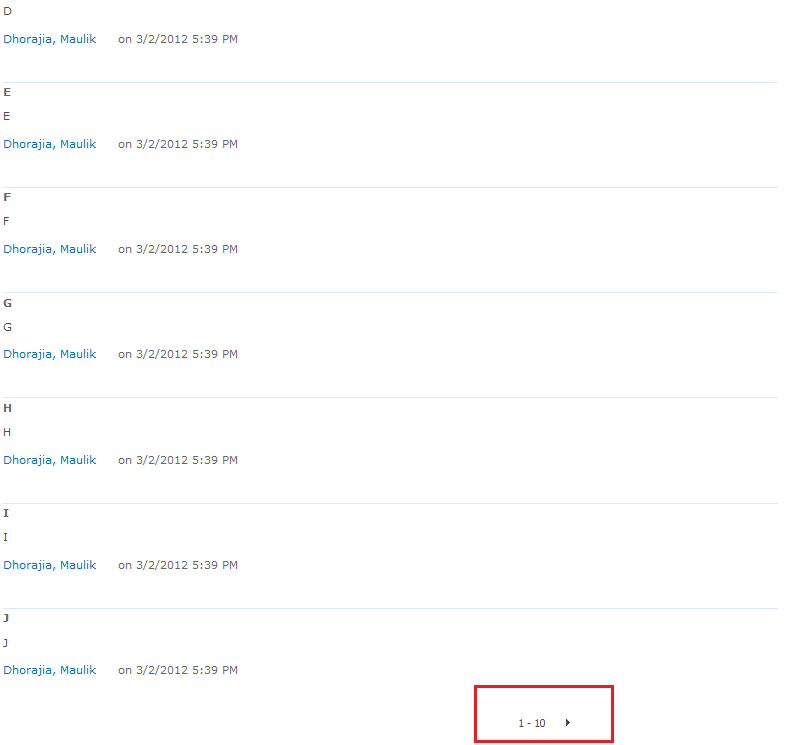
  3. Navigate to default blog created on site and add 11 comments. Right now the URL will be "http://pc92/TestBlog/Lists/Posts/Post.aspx?ID=1". This will enable the paging at the comments webpart.
  4. Now login with User2(Read, Limited Access User) and navigate to the URL "http://pc92/TestBlog/Lists/Posts/Post.aspx?ID=1". The page will show normal. The only difference here is you won't see the "Add Comment" box at the bottom of the screen.
  5. Click the next button. You will see the error.


Cause

The cause of the whole act is when you login as a User2(Read, Limited Access) the Comment Box(ListFormWebPart) is not available for this users. On page load everything is fine. But when you do a postback like paging event it bombs out. This might have got out of the site of MicroSoft Team.

Solution

I created 2 features, one is a site based feature(BlogFixSite) and another one web based feature(BlogFixWeb). On the BlogFixSite activation we check all the web which doesnot have BlogFixWeb activated and the template is a Blog template. So if the feature is activated I assume that the site is already having a fix. In the BlogFixWeb I go to the "Posts" folder and copy "Post.aspx" content and create "Post1.aspx". In the "Post1.aspx" i will remove the "ListFormWebPart" programatically. In "Post.aspx" at the bottom i will place a jquery which will check if the "Add Comment" box is missing than take the user to "Post1.aspx". Repeat the above given test cases and you should be all good.

BlogFixSite - C#

#region System
using System;
using System.Runtime.InteropServices;
using System.Security.Permissions;
using Microsoft.SharePoint;
using Microsoft.SharePoint.Security;
using Microsoft.SharePoint.Administration;
using System.Collections.Generic;
using System.Linq;
#endregion

namespace BlogFix.Features.BlogFixSite
{
    [Guid("63c859cc-77ff-436e-a79e-b4619a67c7c3")]
    public class BlogFixSiteEventReceiver : SPFeatureReceiver
    {
        #region Events

        /// <summary>
        /// Activating
        /// </summary>
        /// <param name="properties"></param>
        public override void FeatureActivated(SPFeatureReceiverProperties properties)
        {
            base.FeatureActivated(properties);

            try
            {
                //Site object
                SPSite _site = (SPSite)properties.Feature.Parent;

                if (_site != null)
                {
                    //Feature ID - BlogFixWeb
                    Guid _featureWeGuid = new Guid("c7178a85-ed45-4f27-bd4a-db2ec3eed95b");

                    //Web List
                    IList<SPWeb> _webList = (from _web in _site.AllWebs.Cast<SPWeb>()
                                             where string.Compare(_web.WebTemplate, "Blog", true) == 0
                                                 && _web.Features[_featureWeGuid] == null
                                             select _web).ToList();

                    //Change the post page
                    foreach (SPWeb _web in _webList)
                    {
                        //Enables the feature - BlogFixWeb
                        if (_web.Features[_featureWeGuid] == null)
                        {
                            _web.Features.Add(_featureWeGuid);
                        }
                    }
                }
            }
            catch (Exception Exc)
            {
                SPDiagnosticsService.Local.WriteTrace(0, new SPDiagnosticsCategory("BlogFixSiteEventReceiver - Activated", TraceSeverity.Unexpected, EventSeverity.Error), TraceSeverity.Unexpected, Exc.Message, Exc.StackTrace);
            }
        }

        #endregion
    }
}


BlogFixWeb - C#

#region System
using System;
using System.Runtime.InteropServices;
using System.Security.Permissions;
using Microsoft.SharePoint;
using Microsoft.SharePoint.Security;
using Microsoft.SharePoint.Administration;
using System.Collections.Generic;
using System.Linq;
#endregion

namespace BlogFix.Features.BlogFixWeb
{
    [Guid("564b0ad9-90a0-45fc-a672-901ec1fd111b")]
    public class BlogFixWebEventReceiver : SPFeatureReceiver
    {
        #region Events

        /// <summary>
        /// Activate the web based feautre
        /// </summary>
        /// <param name="properties"></param>
        public override void FeatureActivated(SPFeatureReceiverProperties properties)
        {
            base.FeatureActivated(properties);

            try
            {
                SPWeb _web = (SPWeb)properties.Feature.Parent;

                //All the subfolders
                SPFolderCollection _folderCollection = _web.Folders["Lists"].SubFolders;

                //Finds the folder containing Post.aspx
                IList<SPFolder> _folderPostList = (from _folderX in _folderCollection.Cast<SPFolder>()
                                                   let _fName = _folderX.Name
                                                   let _fCount = (from _fileX in _folderX.Files.Cast<SPFile>()
                                                                  where string.Compare(_fileX.Name, "post.aspx", true) == 0
                                                                  select _fileX).Count()
                                                   where _fCount > 0
                                                   select _folderX).ToList();


                //Loop it if there are more than one
                if (_folderPostList != null)
                {
                    foreach (SPFolder _folderPost in _folderPostList)
                    {
                        //Get the Post file
                        SPFile _filePost = (from _fileX in _folderPost.Files.Cast<SPFile>()
                                            where string.Compare(_fileX.Name, "post.aspx", true) == 0
                                            select _fileX).FirstOrDefault();

                        //The file post to be copied
                        if (_filePost != null)
                        {
                            //New Post1.aspx URL
                            string _newPostUrl = string.Format("{0}/{1}/{2}",
                                _web.Url,
                                _folderPost.Url,
                                "Post1.aspx");

                            //Copy the file
                            _filePost.CopyTo(_newPostUrl, true);
                            
                            //Update the folder
                            _folderPost.Update();

                            //Remove the control once the page is copied
                            Microsoft.SharePoint.WebPartPages.SPLimitedWebPartManager _webPartCollection = _web.GetLimitedWebPartManager(_newPostUrl, System.Web.UI.WebControls.WebParts.PersonalizationScope.Shared);

                            //Retrive the webpart and remove
                            Microsoft.SharePoint.WebPartPages.WebPart _listFormWebPart = (from _wp in _webPartCollection.WebParts.Cast<Microsoft.SharePoint.WebPartPages.WebPart>()
                                                                                          where _wp.GetType().UnderlyingSystemType.Name == "ListFormWebPart"
                                                                                          select _wp).FirstOrDefault();


                            //Microsoft.SharePoint.WebPartPages.ListFormWebPart _XlistFormWebPart = (Microsoft.SharePoint.WebPartPages.ListFormWebPart)_listFormWebPart;
                            //string _webPartTitle = _XlistFormWebPart.Title
                            //return;

                            if (_listFormWebPart != null)
                            {
                                //Remove the webpart
                                _webPartCollection.DeleteWebPart(_listFormWebPart);

                                //Update
                                _web.Update();
                            }

                            //Modify Post1.aspx and add the javascript tag
                            if (_filePost.RequiresCheckout)
                            {
                                _filePost.CheckOut();
                            }

                            //Edit the file
                            byte[] _htmlByte = _filePost.OpenBinary();
                            string _html = System.Text.Encoding.ASCII.GetString(_htmlByte);
                            string _topHtml = _html.Substring(0, _html.LastIndexOf("</asp:Content>"));
                            string _stript = "\n<script language=\"javascript\" type=\"text/javascript\">!window.jQuery && document.write('<script src=\"http://code.jquery.com/jquery-1.4.2.min.js\"><\\/script>');</script>\n<script language='javascript'>\n\r$(document).ready(function(){\n\r\rif($(\"h3[class='ms-CommentHeader']\").length == 1){\n\r\r\r\rwindow.location.href =     window.location.href.replace(\".aspx?\" , \"1.aspx?\");\n\r\r}\n\r});</script>";
                                

                            _html = string.Format("{0}{1}</asp:Content>", _topHtml, _stript);
                            _filePost.SaveBinary(System.Text.Encoding.ASCII.GetBytes(_html));

                            //Check In
                            if (_filePost.RequiresCheckout)
                            {
                                _filePost.CheckIn(string.Empty);
                            }
                        }
                    }
                }

            }
            catch (Exception Exc)
            {
                SPDiagnosticsService.Local.WriteTrace(0, new SPDiagnosticsCategory("BlogFixWebEventReceiver - Activated", TraceSeverity.Unexpected, EventSeverity.Error), TraceSeverity.Unexpected, Exc.Message, Exc.StackTrace);
            }
        }

        #endregion
    }
}


JavaScript added on Post.aspx

There are 2 "<h3></h3>" tags on the post.aspx page. (1) is "Comments" and (2) is "Add Comments". So if a user dont have access he/she wont see "Add Comment" box. If that box doesnot exists on the page I simply send the user to Post1.aspx.
<script>    !window.jQuery && document.write('<script src="http://code.jquery.com/jquery-1.4.2.min.js"><\/script>');</script>
<script language='javascript'>
    $(document).ready(function () {
        if ($("h3[class='ms-CommentHeader']").length == 1) {
            window.location.href = window.location.href.replace(".aspx?", "1.aspx?");
        }
    });</script>


Final Comments

To make this feature available for all the webs just create a feature stapler which activates the web based feature just like its done in "BlogFixSite".
I know many people wont agree with my solution but right now it is what it is. Happy Coding. Do let me know if this helped you.

Saturday, May 19, 2012

PowerShell : Mount-SPContentDatabase / Dismount-SPContentDatabase database

Situation

If a client provides a database backup of the SharePoint site running on their server and we want to use that database in our environment. Using powershell we have to change the mounting of database and use the database what client sent.

Prerequesites

Restore the database given by client in your Sharepoint database instance. Once that is done run the below given powershell in "SharePoint 2010 Management Shell".

Powershell

# Url of the site collection which the database is going to point
$SiteUrl = "http://MyMachine"
# The current database site is using.
$CurrentContentDatabase = "WSS_Content"
# New database which the site will point
$NewContentDatabase = "WSS_Content_NewDB"
# SQL SERVER Instanne
$DatabaseServer = "MYMachine\SHAREPOINT"

# The command will dismount the current databae
Dismount-SPContentDatabase -Identity $CurrentContentDatabase -confirm:$false

# Mounts the new database
Mount-SPContentDatabase -name $NewContentDatabase -DatabaseServer $DatabaseServer -WebApplication $SiteUrl -confirm:$false

Thursday, May 17, 2012

SharePoint 2010 : Placing the SharePoint:PeopleEditor icons on right instead of bottom.

Goal

The SharePoint:PeopleEditor show the icons on the right side instead of bottom.

Sample Page : ASPX

<style type="text/css">
        .ppimg{border: 0px;vertical-align: middle !important;}
    </style>
    <br /><br /><br /><br />
    <table border="0" cellpadding="10" cellspacing="5" style="border:1px solid #808080">
        <tr>
            <td colspan="2">People picker on right instead of bottom</td>
        </tr>
        <tr>
            <td>
                Default
            </td>
            <td>
                <SharePoint:PeopleEditor AllowEmpty="false" ValidatorEnabled="true" ID="ppDefault"
                    runat="server" ShowCreateButtonInActiveDirectoryAccountCreationMode="false" SelectionSet="User,SPGroup"
                    Rows="1" Width="300px" />
            </td>
        </tr>
        <tr>
            <td nowrap="nowrap">
                Custom View
            </td>
            <td>
                <table>
                    <tr>
                        <td>
                            <SharePoint:PeopleEditor AllowEmpty="false" ValidatorEnabled="true" ID="ppCustom"
                                runat="server" ShowCreateButtonInActiveDirectoryAccountCreationMode="false" SelectionSet="User,SPGroup"
                                Rows="1" Width="300px" ShowButtons="false" />
                        </td>
                        <td valign="top">
                            <a id="aPPChekNames" runat="server" title="Check Name" href="javascript:">
                                <img src="/_layouts/images/checknames.png" alt="Check Names" class="ppimg" /></a>
                        </td>
                        <td valign="top">
                            <a id="aPPBrowse" runat="server" title="Browse" href="javascript:">
                                <img src="/_layouts/images/addressbook.gif" alt="Browse" class="ppimg" /></a>
                        </td>
                    </tr>
                </table>
            </td>
        </tr>
    </table>


Sample Page : Code

//Apply the Javascript to the Icons
aPPChekNames.Attributes.Add("onclick", "if(!ValidatePickerControl('" + ppCustom.ClientID + "')){ ShowValidationError(); return false;} var arg=getUplevel('" + ppCustom.ClientID + "'); var ctx='" + ppCustom.ClientID + "';EntityEditorSetWaitCursor(ctx);WebForm_DoCallback('" + ppCustom.UniqueID + "',arg,EntityEditorHandleCheckNameResult,ctx,EntityEditorHandleCheckNameError,true);return false;");
aPPBrowse.Attributes.Add("onclick", "javascript:__Dialog__" + ppCustom.ClientID + "(); return false;");


Result


I am not sure if many know about this or this is normal, but just wanted to share. Let me know if this helped.

SharePoint 2010 : Call server side function from XSL.

Goal

To use a server side function from a XSL used in a web part.

Solution

It is simple to use a server side function. Just need to make sure the dll should be deployed in GAC. In this example I created a class with name "ClassName", the project name is "SampleApplication". Deployed the dll in GAC. Modify the XSL head and add xmlns:helper="SampleApplication.ClassName" on the head. "helper" is like an tag which will point to the class.

XSL
<xsl:stylesheet 
  version="1.0" 
  exclude-result-prefixes="x d xsl msxsl cmswrt helper"
  xmlns:x="http://www.w3.org/2001/XMLSchema" 
  xmlns:d="http://schemas.microsoft.com/sharepoint/dsp" 
  xmlns:ddwrt="http://schemas.microsoft.com/WebParts/v2/DataView/runtime"
  xmlns:cmswrt="http://schemas.microsoft.com/WebParts/v3/Publishing/runtime"
  xmlns:xsl="http://www.w3.org/1999/XSL/Transform" xmlns:msxsl="urn:schemas-microsoft-com:xslt"
  xmlns:helper="SampleApplication.ClassName">


SampleApplication.ClassName
#region System
using System;
using System.Collections.Generic;
using System.Linq;
using System.Text;
#endregion

namespace SampleApplication
{
    public class ClassName
    {
        #region Properties
        
        /// <summary>
        /// Name 
        /// </summary>
        private static string Name = "Maulik Dhorajia";
        
        /// <summary>
        /// Today Date
        /// </summary>
        private static string TodayDate = System.DateTime.Now.ToString();

        #endregion

        /// <summary>
        /// Gets the property
        /// </summary>
        /// <param name="propertyKey"></param>
        /// <returns></returns>
        public static string GetProperty(string propertyKey)
        {
            if (propertyKey == "Name")
            {
                return Name;
            }
            else if (propertyKey == "TodayDate")
            {
                return TodayDate;
            }
            else 
            {
                return "";
            }
        }
    }
}


Calling the function from XSL
<xsl:value-of select="helper:GetLabel('Name')"/>
<xsl:value-of select="helper:GetLabel('TodayDate')"/>


This should be all to show the stuff on the page. Let me know if this helped.

Wednesday, May 16, 2012

SharePoint 2010 : Insert custom icon in a custom group on Ribbon of Document Library.

Goal

Insert a custom icon(Email icon) on the SharePoint Document Library. The Icon should show in a Custom Group.

Challange

I thought getting the Icon on the top was easy(actually it was easy to place an icon on the top). But to place the icon in a Custom Group was a bit tough that it seems.

Follow the steps to achieve

  1. Open Visual Studio 2010, Create an empty SharePoint Application.
  2. Add a Module, Edit the Element.xml
    <?xml version="1.0" encoding="utf-8"?>
    <Elements xmlns="http://schemas.microsoft.com/sharepoint/">
      <CustomAction
          Id="EmailDocsCustom"
          Location="CommandUI.Ribbon"
          RegistrationType="ContentType"
          RegistrationId="0x01">
        <CommandUIExtension>
          <CommandUIDefinitions>
            <CommandUIDefinition Location="Ribbon.Documents.Groups._children">
              <Group
                  Id="EmailDocsCustomGroup"
                  Sequence="100"
                  Description="E-Mail Controls"
                  Title="E-Mail Controls"
                  Template="EmailDocsCustomGroupTemplate">
                <Controls Id="EmailDocsCustomGroupControl">
                  <Button
                      Id="EmailDocsCustomGroupControlButton"
                      Sequence="5"
                      Command="SimpleAlert"
                      Image32by32="/_layouts/1033/images/formatmap32x32.png" Image32by32Left="-448" Image32by32Top="-128"
                      ToolTipTitle="Email Documents"
                      ToolTipDescription="Select the documents which you want to email!"
                      LabelText="Email Selected Documents"
                      TemplateAlias="o1" />
                </Controls>
              </Group>
            </CommandUIDefinition>
            <CommandUIDefinition Location="Ribbon.Templates._children">
              <GroupTemplate Id="EmailDocsCustomGroupTemplate">
                <Layout Title="LargeLarge">
                  <OverflowSection Type="OneRow" TemplateAlias="o1" DisplayMode="Large"/>
                  <OverflowSection Type="OneRow" TemplateAlias="o2" DisplayMode="Large"/>
                </Layout>
              </GroupTemplate>
            </CommandUIDefinition>
            <CommandUIDefinition Location="Ribbon.Documents.Scaling._children">
              <MaxSize Id="Ribbon.Documents.Scaling.Custom.MaxSize" Sequence="15" GroupId="EmailDocsCustomGroup" Size="LargeLarge" />
            </CommandUIDefinition>
          </CommandUIDefinitions>
          <CommandUIHandlers>
            <CommandUIHandler Command="SimpleAlert" CommandAction="javascript:OpenEmailPage();" />
          </CommandUIHandlers>
        </CommandUIExtension>
      </CustomAction>
    
      <CustomAction
       Id="EmailRelatedScript"
       Location="ScriptLink"
       ScriptSrc ="/_layouts/WhatEvePathYouHave/EmailScript.js"/>
      
    </Elements>
    
  3. Place the EmailScript.js at C:\Program Files\Common Files\Microsoft Shared\Web Server Extensions\14\TEMPLATE\LAYOUTS\WhatEvePathYouHave(You can map the folder and do this). With the help of this script you can do manipulations on the click of the icon placed on the top ribbon. Below is the script in EmailScript.js.
    //Get the current user and add the values found in the Email settings list
    function OpenEmailPage() {
    
        //Gets the current Context
        var _ctx = new SP.ClientContext.get_current();
        //Selected Items Variables
        var _itemIds = "";
        //Get current list id
        var _listId = SP.ListOperation.Selection.getSelectedList();
        var _listUrl = window.location.href;
        //get all selected list items
        var _selectedItems = SP.ListOperation.Selection.getSelectedItems(_ctx);
        //collect selected item ids
        for (var i = 0; i < _selectedItems.length; i++) {
            if (_itemIds == "")
            { _itemIds += _selectedItems[i].id; }
            else
            { _itemIds += "," + _selectedItems[i].id; }
        }
    
        alert('ListID = ' + _listId + "\nListUrl = " + _listUrl + "\nIDs=" + _itemIds);    
    }
  4. Before deploying the solution, check a document library. The ribbon on the top in the documents should like the below given image.
  5. Deploy the solution. Visit a Document Library, select docs and the new Icon should show up on the top right corner.
I am not very good with Ribbons and spent a lot of time to get just this portion. So thought if this can help many other who dont have time and have to get this quickly.

Friday, April 6, 2012

SharePoint 2010 : Use Resouce(resx) file in a Multilingual site.

Goal

Our site is created using variations in both English and Spanish. Create a Visual Web Part which can use the resource file(.resx) to show different texts for different language.

Steps to achieve goal

  • Create a SharePoint project with name "Sample".
  • Add a web part with name "SampleWebPart".
  • Add a "Mapped Folder" to "Resources". 2 files needs to be added.
    1. SampleWebPart.en-US.resx - English version resource file. Add some text to the resource.
    2. SampleWebPart.es-ES.resx - Spanish version resource file. Add some text to the resource.
  • At this point the project "Solution Explorer" will look like
  • For applying the resource, Open the Feature1 properties. And make the 2 changes shown in the below given image.
  • Use the HTML and C# Code below.
  • Once the above given steps are done, deploy the web part and They will display as below given image.


HTML - SampleWebPartUserControl.ascx

<h1><asp:Literal ID="ltrlTitle" runat="server" /></h1>
<hr />
<h3>
    <asp:Literal ID="ltrlDescription" runat="server" />
</h3>


C# - SampleWebPartUserControl.ascx.cs

#region System
using System;
using System.Web.UI;
using System.Web.UI.WebControls;
using System.Web.UI.WebControls.WebParts;
#endregion

namespace Sample.SampleWebPart
{
    /// <summary>
    /// Simple example to use Resouce file with English/Spanish language.
    /// </summary>
    public partial class SampleWebPartUserControl : UserControl
    {
        #region Events

        /// <summary>
        /// Page Load
        /// </summary>
        /// <param name="sender"></param>
        /// <param name="e"></param>
        protected void Page_Load(object sender, EventArgs e)
        {
            ltrlTitle.Text = LoadResource( ResourceName.Title );
            ltrlDescription.Text = LoadResource(ResourceName.Description);
        }

        #endregion

        #region Resource Reader

        /// <summary>
        /// Name for the Version to be considered.
        /// NOTE :- Use exactly same "Name" as used in Resource(resx) file.
        /// </summary>
        public enum ResourceName
        { 
            Title,
            Description
        }

        /// <summary>
        /// Gets the text on the basis of "Name" in Resource(resx).
        /// </summary>
        private string LoadResource(ResourceName _resName)
        {
            return Microsoft.SharePoint.Utilities.SPUtility.GetLocalizedString("$Resources:" + _resName.ToString(),
                "SampleWebPart"
            , (uint)System.Globalization.CultureInfo.CurrentUICulture.LCID); 
        }

        #endregion
    }
}


Happy Coding

Saturday, March 3, 2012

SharePoint 2010 Error Solution : A Web Part or Web Form Control on this Page cannot be displayed or imported. The type could not be found or it is not registered as safe.

Introduction

An occours when a user tries to add a webpart on the page. The description of the error is "A Web Part or Web Form Control on this Page cannot be displayed or imported. The type could not be found or it is not registered as safe.".


Test Cases

Here, I am creating a small solution to show why I got this issue.
  1. Open Visual Studio 2010. Create a project with name "Sample".
  2. Add a WebPart to the project with name "SomeWebPart"(Note : Mind it WebPart not VisualWebPart).
  3. Add a class library to the solution with name "Helper".
  4. Add a "Helper.snk" to the project by Right Clicking "Helper" > Properties > Signing > Choose a strong name...
  5. Once that is done the structure will look like image given below
  6. Helper.Enums Code
    using System;
    using System.Collections.Generic;
    using System.Linq;
    using System.Text;
    
    namespace Helper
    {
        public class Enums
        {
            public enum SomeType
            {
                A = 0,
                B = 1,
                C = 2
            }
        }
    }
    
  7. SomeWebPart.cs Code
    using System;
    using System.ComponentModel;
    using System.Web;
    using System.Web.UI;
    using System.Web.UI.WebControls;
    using System.Web.UI.WebControls.WebParts;
    using Microsoft.SharePoint;
    using Microsoft.SharePoint.WebControls;
    
    namespace Sample.SomeWebPart
    {
        [ToolboxItemAttribute(false)]
        public class SomeWebPart : WebPart
        {
            /// <summary>
            /// The enum which resides in enum
            /// </summary>
            public Helper.Enums.SomeType SomeTypeEnum { get; set; }
    
            /// <summary>
            /// Create child control
            /// </summary>
            protected override void CreateChildControls()
            {
    
            }       
            
        }
    }
  8. Deploy to the site. Try adding the WebPart and it will give the above mentioned error.


Problem

The problem is "Sample.dll" created for the WebPart gets added to the wsp and gets added to GAC automatically but the "Helper.dll" is not considered as a safe one and it stays out of GAC and so while adding the WebPart, it blows and the error shows on the alert window.

Solution

  1. Sample > Package > Open "Package.package"
  2. At the bottom you will find an option title "Advanced".
  3. As shown in the image select "Add Assembly from Project Output...".
  4. In the dialog select "Helper" will auto populate the Helper details.
  5. Safe Controls section add a new item.
  6. Fill the Namespace and Assembly with name "Helper".
  7. Click "OK" and exit the dialog. You can see the settings of Helper added on the Advanced screen.
  8. Deploy the WebPart and try adding it again. It should work.


Hope this helped!

SharePoint 2010 : Remove a WebPart from Page programmatically using C#.

Goal

To remove webparts from a page programmatically using C#.

Code

/// <summary>
/// This function will remove web parts with title passed
/// </summary>
/// <param name="_web">Web object</param>
/// <param name="_pageUrl">The url of the page on which the web part exists.</param>
/// <param name="_title">The title of the Web part</param>
private void RemoveWebPart(SPWeb _web, string _pageUrl, string _webPartTitle)
{
    //Remove the control once the page is copied
    Microsoft.SharePoint.WebPartPages.SPLimitedWebPartManager _webPartCollection = _web.GetLimitedWebPartManager(_pageUrl, System.Web.UI.WebControls.WebParts.PersonalizationScope.Shared);

    //Retrive the webpart and remove
    IList<Microsoft.SharePoint.WebPartPages.WebPart> _listFormWebParts = (from _wp in _webPartCollection.WebParts.Cast<Microsoft.SharePoint.WebPartPages.WebPart>()
                                                                            where string.Compare( _wp.Title , _webPartTitle  , true ) == 0
                                                                            select _wp).ToList();

    //Check if there are any web parts found
    if (_listFormWebParts != null)
    {
        foreach (Microsoft.SharePoint.WebPartPages.WebPart _listFormWebPart in _listFormWebParts)
        {
            //Remove the webpart
            _webPartCollection.DeleteWebPart(_listFormWebPart);

            //Update
            _web.Update();
        }
    }
}


Tip

Suppose we dont want to remove the webpart using "Title" we want to remove the webpart with type.
//Retrive the webpart and remove
IList<Microsoft.SharePoint.WebPartPages.WebPart> _listFormWebParts = (from _wp in _webPartCollection.WebParts.Cast<Microsoft.SharePoint.WebPartPages.WebPart>()
                                                                        where _wp.GetType() == typeof(Microsoft.SharePoint.WebPartPages.ListFormWebPart)
                                                                        select _wp).ToList();

Wednesday, February 22, 2012

SharePoint 2010 : Login the system as Current Windows Authenticated user without code.

Problem

Everytime I come on my SharePoint Server and open a site, I have to add my credentials to get in the site. What should be done to login default as a current user logged in Windows.

Solution

  1. Start Internet Explorer
  2. Security Tab
  3. Local Intranet
  4. Click "Sites"
  5. Click "Advanced"
  6. Add the local domain
  7. Save everything.
  8. Restart the browser


This should take care of the issue.

Important Note

Mostly this is not considered as a good option, but being a developer who wants to waste time in entering the login credentials again and again. :P

SharePoint 2010 : Using ECMA script recall javascript function on control click in UpdatePanel.

I dont know if this is important or not but I found this thing interesting to blog.

Goal

There is a in UpdatePanel on the page. We have to call a javascript everytime the page is postback. Even if it is a postback from a control under UpdatePanel. I discovered a way using ECMA using which we can easily call the javascript function.

Solution

<script>!window.jQuery && document.write('<script src="http://code.jquery.com/jquery-1.4.2.min.js"><\/script>');</script>
<script type="text/javascript">
    //Call the function or assign the event on ready
    $(document).ready(function(){
        //This will wait until script is loaded and than call our function
        ExecuteOrDelayUntilScriptLoaded(PageLoadEvent, "sp.js");
    });
    
    //This function is the most important function that will add the end request
    Sys.WebForms.PageRequestManager.getInstance().add_endRequest(FunctionHandler);
    
    //Event handler that fires on the UpdatePanel control events too
    function FunctionHandler(sender, args) {
        ExecuteOrDelayUntilScriptLoaded(ButtonClickEvent, "sp.js");
    }
    
    //Write the time on page load
    function PageLoadEvent(){
        alert('Page Load : ' + (new Date()).toString() );
    }

    //Will call on button click event
    function ButtonClickEvent(){
        alert('Button Click : ' + (new Date()).toString() );
    }                
</script>
<asp:UpdatePanel ID="upPanel" runat="server">
    <ContentTemplate>
        <asp:Button ID="btn" runat="server" Text="Click here!!!" />
    </ContentTemplate>
</asp:UpdatePanel>


Important Note

The most important thing in this is, if you remove "Sys.WebForms.PageRequestManager.getInstance().add_endRequest(FunctionHandler);" and try clicking the button the event wont be raised to call "function ButtonClickEvent()". So that is the magic trick.

Let me know if this helped you!