Showing posts with label Sharepoint Designer 2010. Show all posts

Thursday, May 29, 2014

Sharepoint 2010 - Strange blog URL issue with site using Variations(Multilingual site). - REALLY WEIRD ISSUE!

Scenario/Symptoms

  • We have a site with variations. English/Spanish
  • Structure
    • Main Site > en > English Blog(Add 1 or 2 sample blogs)
    • Main Site > es > Spanish Blog(Add 1 or 2 sample blogs)
  • On the "Main Site" we added a "Content Query Web Part". Apply the below given setting.
  • Click on the link of any English blog. IT WORKS FINE!!!
  • Now click on the Spanish blog link. IT SAYS "PAGE NOT FOUND"!!!
  • Another way to get this is.
    • Go to the URL of Spanish blog site.
    • You can find the blogs on the page.
    • Click on the blog link IT SAYS "PAGE NOT FOUND"!!!.
    • Or navigate to "Administrar entradas de blog"(AllPosts.aspx). This page will show all the blogs in the list. Click on the blog link IT SAYS "PAGE NOT FOUND"!!!


Cause

We added a column to the list "Post". Now this small thing was causing the whole havoc.


Solution

There are 3 ways to
  1. Either don't add any column to list "Post". => BAD ONE
  2. Copy SharePoint Designer > Lists > Estrada De Blog and paste it there with name "Post". Don't delete the folder. Just need to duplicate and rename the folder.
  3. Read the blog => Sharepoint 2010 - Solution to blog URL issue with site using Variations(Multilingual site) to see the feature stapler solution for this issue.


Hope this helps. If you have any questions or a better solution, I am all open for it. Thanks for reading the blog.

Thursday, September 20, 2012

Sharepoint 2010 Error Solution : The Visible property cannot be set on Web Part 'g_XXX'. It can only be set on a standalone Web Part.

Problem

There is an issue with OOTB SharePoint logic.

Scenario

  1. 2 types of Users
    • User1 is Site Administrator
    • User2 is a simple user with Read, Limited Access.
  2. Issue comes under blog site.


How to reproduce? Follow the below given test case.

  1. Create a site collection. In my case I have created it on "http://pc92".
  2. I create a blog site with name "TestBlog" using User1. In my case it is "http://pc92/TestBlog/".
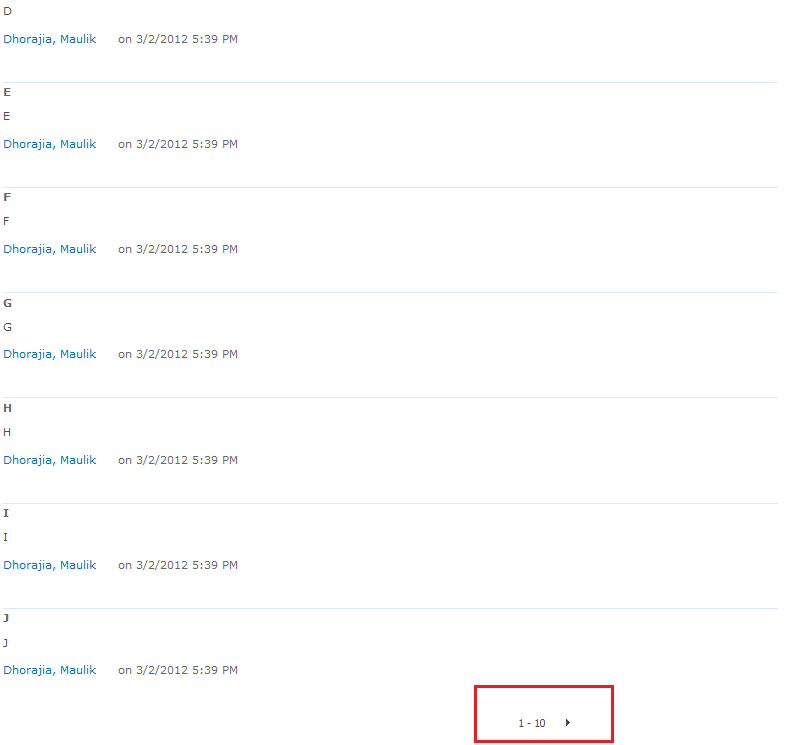
  3. Navigate to default blog created on site and add 11 comments. Right now the URL will be "http://pc92/TestBlog/Lists/Posts/Post.aspx?ID=1". This will enable the paging at the comments webpart.
  4. Now login with User2(Read, Limited Access User) and navigate to the URL "http://pc92/TestBlog/Lists/Posts/Post.aspx?ID=1". The page will show normal. The only difference here is you won't see the "Add Comment" box at the bottom of the screen.
  5. Click the next button. You will see the error.


Cause

The cause of the whole act is when you login as a User2(Read, Limited Access) the Comment Box(ListFormWebPart) is not available for this users. On page load everything is fine. But when you do a postback like paging event it bombs out. This might have got out of the site of MicroSoft Team.

Solution

I created 2 features, one is a site based feature(BlogFixSite) and another one web based feature(BlogFixWeb). On the BlogFixSite activation we check all the web which doesnot have BlogFixWeb activated and the template is a Blog template. So if the feature is activated I assume that the site is already having a fix. In the BlogFixWeb I go to the "Posts" folder and copy "Post.aspx" content and create "Post1.aspx". In the "Post1.aspx" i will remove the "ListFormWebPart" programatically. In "Post.aspx" at the bottom i will place a jquery which will check if the "Add Comment" box is missing than take the user to "Post1.aspx". Repeat the above given test cases and you should be all good.

BlogFixSite - C#

#region System
using System;
using System.Runtime.InteropServices;
using System.Security.Permissions;
using Microsoft.SharePoint;
using Microsoft.SharePoint.Security;
using Microsoft.SharePoint.Administration;
using System.Collections.Generic;
using System.Linq;
#endregion

namespace BlogFix.Features.BlogFixSite
{
    [Guid("63c859cc-77ff-436e-a79e-b4619a67c7c3")]
    public class BlogFixSiteEventReceiver : SPFeatureReceiver
    {
        #region Events

        /// <summary>
        /// Activating
        /// </summary>
        /// <param name="properties"></param>
        public override void FeatureActivated(SPFeatureReceiverProperties properties)
        {
            base.FeatureActivated(properties);

            try
            {
                //Site object
                SPSite _site = (SPSite)properties.Feature.Parent;

                if (_site != null)
                {
                    //Feature ID - BlogFixWeb
                    Guid _featureWeGuid = new Guid("c7178a85-ed45-4f27-bd4a-db2ec3eed95b");

                    //Web List
                    IList<SPWeb> _webList = (from _web in _site.AllWebs.Cast<SPWeb>()
                                             where string.Compare(_web.WebTemplate, "Blog", true) == 0
                                                 && _web.Features[_featureWeGuid] == null
                                             select _web).ToList();

                    //Change the post page
                    foreach (SPWeb _web in _webList)
                    {
                        //Enables the feature - BlogFixWeb
                        if (_web.Features[_featureWeGuid] == null)
                        {
                            _web.Features.Add(_featureWeGuid);
                        }
                    }
                }
            }
            catch (Exception Exc)
            {
                SPDiagnosticsService.Local.WriteTrace(0, new SPDiagnosticsCategory("BlogFixSiteEventReceiver - Activated", TraceSeverity.Unexpected, EventSeverity.Error), TraceSeverity.Unexpected, Exc.Message, Exc.StackTrace);
            }
        }

        #endregion
    }
}


BlogFixWeb - C#

#region System
using System;
using System.Runtime.InteropServices;
using System.Security.Permissions;
using Microsoft.SharePoint;
using Microsoft.SharePoint.Security;
using Microsoft.SharePoint.Administration;
using System.Collections.Generic;
using System.Linq;
#endregion

namespace BlogFix.Features.BlogFixWeb
{
    [Guid("564b0ad9-90a0-45fc-a672-901ec1fd111b")]
    public class BlogFixWebEventReceiver : SPFeatureReceiver
    {
        #region Events

        /// <summary>
        /// Activate the web based feautre
        /// </summary>
        /// <param name="properties"></param>
        public override void FeatureActivated(SPFeatureReceiverProperties properties)
        {
            base.FeatureActivated(properties);

            try
            {
                SPWeb _web = (SPWeb)properties.Feature.Parent;

                //All the subfolders
                SPFolderCollection _folderCollection = _web.Folders["Lists"].SubFolders;

                //Finds the folder containing Post.aspx
                IList<SPFolder> _folderPostList = (from _folderX in _folderCollection.Cast<SPFolder>()
                                                   let _fName = _folderX.Name
                                                   let _fCount = (from _fileX in _folderX.Files.Cast<SPFile>()
                                                                  where string.Compare(_fileX.Name, "post.aspx", true) == 0
                                                                  select _fileX).Count()
                                                   where _fCount > 0
                                                   select _folderX).ToList();


                //Loop it if there are more than one
                if (_folderPostList != null)
                {
                    foreach (SPFolder _folderPost in _folderPostList)
                    {
                        //Get the Post file
                        SPFile _filePost = (from _fileX in _folderPost.Files.Cast<SPFile>()
                                            where string.Compare(_fileX.Name, "post.aspx", true) == 0
                                            select _fileX).FirstOrDefault();

                        //The file post to be copied
                        if (_filePost != null)
                        {
                            //New Post1.aspx URL
                            string _newPostUrl = string.Format("{0}/{1}/{2}",
                                _web.Url,
                                _folderPost.Url,
                                "Post1.aspx");

                            //Copy the file
                            _filePost.CopyTo(_newPostUrl, true);
                            
                            //Update the folder
                            _folderPost.Update();

                            //Remove the control once the page is copied
                            Microsoft.SharePoint.WebPartPages.SPLimitedWebPartManager _webPartCollection = _web.GetLimitedWebPartManager(_newPostUrl, System.Web.UI.WebControls.WebParts.PersonalizationScope.Shared);

                            //Retrive the webpart and remove
                            Microsoft.SharePoint.WebPartPages.WebPart _listFormWebPart = (from _wp in _webPartCollection.WebParts.Cast<Microsoft.SharePoint.WebPartPages.WebPart>()
                                                                                          where _wp.GetType().UnderlyingSystemType.Name == "ListFormWebPart"
                                                                                          select _wp).FirstOrDefault();


                            //Microsoft.SharePoint.WebPartPages.ListFormWebPart _XlistFormWebPart = (Microsoft.SharePoint.WebPartPages.ListFormWebPart)_listFormWebPart;
                            //string _webPartTitle = _XlistFormWebPart.Title
                            //return;

                            if (_listFormWebPart != null)
                            {
                                //Remove the webpart
                                _webPartCollection.DeleteWebPart(_listFormWebPart);

                                //Update
                                _web.Update();
                            }

                            //Modify Post1.aspx and add the javascript tag
                            if (_filePost.RequiresCheckout)
                            {
                                _filePost.CheckOut();
                            }

                            //Edit the file
                            byte[] _htmlByte = _filePost.OpenBinary();
                            string _html = System.Text.Encoding.ASCII.GetString(_htmlByte);
                            string _topHtml = _html.Substring(0, _html.LastIndexOf("</asp:Content>"));
                            string _stript = "\n<script language=\"javascript\" type=\"text/javascript\">!window.jQuery && document.write('<script src=\"http://code.jquery.com/jquery-1.4.2.min.js\"><\\/script>');</script>\n<script language='javascript'>\n\r$(document).ready(function(){\n\r\rif($(\"h3[class='ms-CommentHeader']\").length == 1){\n\r\r\r\rwindow.location.href =     window.location.href.replace(\".aspx?\" , \"1.aspx?\");\n\r\r}\n\r});</script>";
                                

                            _html = string.Format("{0}{1}</asp:Content>", _topHtml, _stript);
                            _filePost.SaveBinary(System.Text.Encoding.ASCII.GetBytes(_html));

                            //Check In
                            if (_filePost.RequiresCheckout)
                            {
                                _filePost.CheckIn(string.Empty);
                            }
                        }
                    }
                }

            }
            catch (Exception Exc)
            {
                SPDiagnosticsService.Local.WriteTrace(0, new SPDiagnosticsCategory("BlogFixWebEventReceiver - Activated", TraceSeverity.Unexpected, EventSeverity.Error), TraceSeverity.Unexpected, Exc.Message, Exc.StackTrace);
            }
        }

        #endregion
    }
}


JavaScript added on Post.aspx

There are 2 "<h3></h3>" tags on the post.aspx page. (1) is "Comments" and (2) is "Add Comments". So if a user dont have access he/she wont see "Add Comment" box. If that box doesnot exists on the page I simply send the user to Post1.aspx.
<script>    !window.jQuery && document.write('<script src="http://code.jquery.com/jquery-1.4.2.min.js"><\/script>');</script>
<script language='javascript'>
    $(document).ready(function () {
        if ($("h3[class='ms-CommentHeader']").length == 1) {
            window.location.href = window.location.href.replace(".aspx?", "1.aspx?");
        }
    });</script>


Final Comments

To make this feature available for all the webs just create a feature stapler which activates the web based feature just like its done in "BlogFixSite".
I know many people wont agree with my solution but right now it is what it is. Happy Coding. Do let me know if this helped you.

Wednesday, February 22, 2012

SharePoint 2010 : Using ECMA script recall javascript function on control click in UpdatePanel.

I dont know if this is important or not but I found this thing interesting to blog.

Goal

There is a in UpdatePanel on the page. We have to call a javascript everytime the page is postback. Even if it is a postback from a control under UpdatePanel. I discovered a way using ECMA using which we can easily call the javascript function.

Solution

<script>!window.jQuery && document.write('<script src="http://code.jquery.com/jquery-1.4.2.min.js"><\/script>');</script>
<script type="text/javascript">
    //Call the function or assign the event on ready
    $(document).ready(function(){
        //This will wait until script is loaded and than call our function
        ExecuteOrDelayUntilScriptLoaded(PageLoadEvent, "sp.js");
    });
    
    //This function is the most important function that will add the end request
    Sys.WebForms.PageRequestManager.getInstance().add_endRequest(FunctionHandler);
    
    //Event handler that fires on the UpdatePanel control events too
    function FunctionHandler(sender, args) {
        ExecuteOrDelayUntilScriptLoaded(ButtonClickEvent, "sp.js");
    }
    
    //Write the time on page load
    function PageLoadEvent(){
        alert('Page Load : ' + (new Date()).toString() );
    }

    //Will call on button click event
    function ButtonClickEvent(){
        alert('Button Click : ' + (new Date()).toString() );
    }                
</script>
<asp:UpdatePanel ID="upPanel" runat="server">
    <ContentTemplate>
        <asp:Button ID="btn" runat="server" Text="Click here!!!" />
    </ContentTemplate>
</asp:UpdatePanel>


Important Note

The most important thing in this is, if you remove "Sys.WebForms.PageRequestManager.getInstance().add_endRequest(FunctionHandler);" and try clicking the button the event wont be raised to call "function ButtonClickEvent()". So that is the magic trick.

Let me know if this helped you!

Tuesday, November 1, 2011

SharePoint 2010 - Use custom ItemStyle settings in Content Query Web Part.

Friends, I know many might find it easy to use the Custom Item Style for a Content Query Web Part. But, still I will try and explain a small process in a simplified way. Let's see if this is helpful for the starters.

Goal

The main goal is to use a Custom List name "Sample" and use a Content Query Web Part to show it with custom design style.

Process

  1. Create a custom list with name "Sample". The should just have 3 fields.
    1. Title - This is the main text to be shown for the picture.
    2. Picture - This is the hyperlink column for the picture of the item.
    3. Skills - This is a simple multiple line comment for the item.
  2. Go to any page. Add a web part. Drop a Content Query Web Part(CQWP) on the page from "Content Rollup".
  3. Click "Open tool pane".
  4. Content Query Tool Part > Query > Source > Show items from the following list: > Select "SAMPLE"
  5. Content Query Tool Part > Query > Presentation > Please see the picture as a default setting. I am going to leave it as it is.
  6. Click "Save" and the view of the web part will be a default text one which is going to look like picture below.
  7. On Clicking the picture it goes to the display record screen.

But now moving back to our goal. We need to show the data in a custom design layout. So follow the below given steps.
  1. Open a SharePoint 2010 designer.
  2. All Files > Style Library > XSL Style Sheets > ItemStyle.xsl(Edit it in advance mode)
  3. Find this element, copy it and paste it at the bottom of the XSL.
    <xsl:template name="Default" match="*" mode="itemstyle">...</xsl:template>
  4. Change the name and match to Sample.
    <xsl:template name="Sample" match="Row[@Style='Sample']" mode="itemstyle">...</xsl:template>
  5. Also if you edit the web part you can now see the item in the ItemStyle list. Make changes to map the correct fields too.

  6. Make the changes to the xsl(As you want the view of the list) or can copy the whole block and paste it at the bottom of the ItemStyle.xsl.
    <xsl:template name="Sample" match="Row[@Style='Sample']" mode="itemstyle">
            <xsl:variable name="SafeLinkUrl">
                <xsl:call-template name="OuterTemplate.GetSafeLink">
                    <xsl:with-param name="UrlColumnName" select="'LinkUrl'"/>
                </xsl:call-template>
            </xsl:variable>
            <xsl:variable name="SafeImageUrl">
                <xsl:call-template name="OuterTemplate.GetSafeStaticUrl">
                    <xsl:with-param name="UrlColumnName" select="'ImageUrl'"/>
                </xsl:call-template>
            </xsl:variable>
            <xsl:variable name="DisplayTitle">
                <xsl:call-template name="OuterTemplate.GetTitle">
                    <xsl:with-param name="Title" select="@Title"/>
                    <xsl:with-param name="UrlColumnName" select="'LinkUrl'"/>
                </xsl:call-template>
            </xsl:variable>
            <table cellpadding="0" cellspacing="5" border="0" style="border:1px Solid #efefef;width:400px;">
                <tr>
                    <td style="width:100px" align="center">
                        <a href="{$SafeLinkUrl}" title="{@LinkToolTip}">
                            <img class="image" src="{$SafeImageUrl}" title="{@ImageUrlAltText}" />
                        </a>
                    </td>
                    <td valign="top" align="left"><a href="{$SafeLinkUrl}" title="{@LinkToolTip}">
                      <xsl:if test="$ItemsHaveStreams = 'True'">
                        <xsl:attribute name="onclick">
                          <xsl:value-of select="@OnClickForWebRendering"/>
                        </xsl:attribute>
                      </xsl:if>
                      <xsl:if test="$ItemsHaveStreams != 'True' and @OpenInNewWindow = 'True'">
                        <xsl:attribute name="onclick">
                          <xsl:value-of disable-output-escaping="yes" select="$OnClickTargetAttribute"/>
                        </xsl:attribute>
                      </xsl:if>
                      <xsl:value-of select="$DisplayTitle"/>
                    </a><br /><xsl:value-of select="@Description" disable-output-escaping="yes" /></td>
                </tr>
            </table> 
        </xsl:template>
    
  7. Once you are done with that you can see the below given view on the screen.
  8. Thats it.


I have tried my best to keep this as simple as possible for freshers who are learning SharePoint.

Thursday, October 13, 2011

SharePoint 2010 - SharePoint Page unable to save the "Publishing Content" changes in Version History.

Problem
I was facing a strange issue with custom "Page". Each and every page layout i was using having a "Page Content" control to enter some text. Here is visual as well as HTML of the control I am talking about.

HTML
<PublishingWebControls:RichHtmlField FieldName="PublishingPageContent" runat="server"/>
Visual
  • I added a new page to my SharePoint Site.
  • Assigned a custom "Page Layout".
  • My Page Layout contains the "Page Content" control. I made some changes to the text "Test".
  • Check In the page.
  • I want to edit the page again, changed the text to "Test - This is a change".
  • Check In the page.
  • Now in the "Page" tab on the top click "Page History".
  • You can find out the versions on the left side. 0.1 and 0.2. Please have a look at the image below.
  • There is no history shown. If you try the same thing with a "Out Of the Box" Page Layouts like Article Page, Enterprise wiki page it will work.


Catch
The publishing content type "Page" was missing column "Page Content". Because if you see in the properties above FieldName="PublishingPageContent"(This is a static name of "Page Content" column) was there in the HTML, but was not as columns in "Page", so history was not getting saved.


Manual Solution
  • Site Actions
  • Site Settings
  • Site Content Types
  • Publishing Content Types
  • Click "Page"
  • Add from existing site columns
  • Select and Add a "Page Content"
  • Save
Programmatic Solution
Create a Visual Studio Project. Create a "Site level Feature". Add a feature receiver. Use below given code. Call the function from Feature_Activation. It will add the "Page Content" if missing.
/// <summary>
/// Add Page Content To Content Type Page for a Publishing Site.
/// </summary>
/// <param name="_properties"></param>
private void AddPageContentToContentTypPage(SPFeatureReceiverProperties _properties)
{
    using (SPWeb _web = ((SPSite)_properties.Feature.Parent).RootWeb)
    {

        //Retrieve the content type
        SPContentType _contentType = _web.ContentTypes["Page"];

        if (_contentType != null)
        {
            if (!_contentType.Fields.ContainsFieldWithStaticName("PublishingPageContent"))
            {
                SPField _field = _web.AvailableFields["Page Content"];
                SPFieldLink _fieldText = new SPFieldLink(_field);

                if (_contentType.FieldLinks[_fieldText.Id] == null)
                {
                    _contentType.FieldLinks.Add(_fieldText);
                }
                _contentType.Update(true);
            }
        }
    }
}

Final Result
Once you are done with this. Please follow the steps mentioned above and you can see the result below.


Hope this helps.

Saturday, October 8, 2011

Sharepoint - Troubleshooting a page with "?contents=1"

Guys, I found out something which is really cool. I was working on a custom web part. I added that web part on a page "Test.aspx". One of the web part was having an error "Object Reference...". There was no SharePoint Designer installed in my machine and now i was confused, how can i remove that web part so that at least the page show up? I found out that from a friend that if we just use "?contents=1" in the querystring we can get the list of web parts and can remove the web part directly.


This "?contents=1" also show the web parts which were added to page in past. Go through the below given images to have an idea what i am trying to explain.


  • Here you can see a page with 4 web parts added to it.
    1. Quick Clicks - This is my custom webpart. This webpart contains an error which blocks the whole page to load.
    2. Image Viewer - OOTB web part.
    3. XML Viewer - OOTB web part.
    4. Content Query - OOTB web part.
  • When I clicked "Save & Close" from the top ribbon. The page bombs out giving the error mentioned below.
  • Now as i mentioned above i used "?contents=1" and it showed me the list of all the web parts for this page.
  • In the above image "Custom Web Part" was added to the page but was deleted, still it shows up in the history.
Please let me know if there are any queries.

Monday, September 26, 2011

SharePoint 2010 Deploy Master Page using Visual Studio Solution Project and Set it as Default Master Page.

This blog will give an understanding of how to add a master page using a Visual Studio solution project. Also setting the same master as a default for site.


STEP 1 : Adding a Master Page using Module

  1. Open a visual studio 2010
  2. Add new project
  3. Empty Sharepoint Project > Deploy as Farm Solution > Finish.
  4. Add New Item > Select "Module" > I named it as "MasterPage".
  5. Delete the "Sample.txt" which gets added in the module by default.
  6. Add new MainMasterPage.master. Do whatever change you want to it.
  7. Open the elements.xml file of "MasterPage" module. You will have to make some modification shown below.


    <?xml version="1.0" encoding="utf-8"?>
    <Elements xmlns="http://schemas.microsoft.com/sharepoint/">
        <Module Name="MasterPage" List="116" Url="_catalogs/masterpage">
            <File Path="MasterPage\MainMasterPage.master" Url="MainMasterPage.master" Type="GhostableInLibrary">
                <Property Type="string" Name="Title" Value="My Main Master Page"/>
            </File>
      </Module>
    </Elements>
  8. Please verify the below given text i made change in the original one. This is MOST IMPORTANT!!!.
    List="116" Url="_catalogs/masterpage"
    Url="MainMasterPage.master" Type="GhostableInLibrary"
  9. Once this is set just deploy the project.

STEP 1.1 : Verify the file got uploaded

  1. Open the site in SharePoint Designer 2010.
  2. All Files > _catalogs > MasterPage
  3. The file should be at this location because if you see the element.xml above in the url we have given the path of "_catalogs/masterpage". That's it we now achieved the first step of adding a master file to the site.


STEP 2 : Apply the page as a default master page

  1. In the visual studio solution project select "Features > Feature1 > Feature1.feature".
  2. Right click "Add event receiver".
  3. Put this code.

    /// <summary>
    /// Set the MainMasterPage.master as default master for site.
    /// </summary>
    /// <param name="properties"></param>
    public override void FeatureActivated(SPFeatureReceiverProperties properties)
    {
        SPSecurity.RunWithElevatedPrivileges(delegate
        {
            using (SPWeb _web = ((SPSite)properties.Feature.Parent).RootWeb)
            {
                Uri _siteMaster = new Uri(string.Format("{0}/_catalogs/masterpage/MainMasterPage.master", _web.Url));
                _web.MasterUrl = _siteMaster.AbsolutePath;
                _web.CustomMasterUrl = _siteMaster.AbsolutePath;
                _web.Update();                   
            }
        });
    }
  4. Right click the project and deploy the solution.

I hope this helps you with the deployment of master page and setting it as a default.

PROBLEM :- There is a problem with the current process. For the first time this will work but if you make any changes to the master page and re-deploy the same solution will not deploy this new master page with the changes on the server. Please read my next blog "Sharepoint 2010 Master page issue with re-deployment with new changes from Visual Studio solution" for the solution.

Tuesday, August 30, 2011

Sharepoint 2010 deploy .webpart file Custom Group instead of Miscellaneous.

Goal
To deploy a web part using Module in Visual Studio project. The webpart should be deployed in group custom name "MBD Web Parts" and not in "Miscellaneous".

  • Open Visual Studio 2010.

  • File > New > Sharepoint > Empty Sharepoint Project > Name it "Sample"

  • Right click project > Add a Module > Name "Something".

  • Remove Sample.txt. Add a file(DemoWebPart.webpart) to the module.

  • Make the below given changes to the "Element.xml".

  • Right click project and deploy.

  • Visit your website.

  • Site Actions > Edit Site

  • Click "Add a Web Part". On the top ribbon.


You should now be able to see webpart in "MBD Web Parts" and not in "Miscellaneous".

Change in Element.xml


<?xml version="1.0" encoding="utf-8"?>
<Elements xmlns="http://schemas.microsoft.com/sharepoint/">
<Module List="113" Name="Something" Url="_catalogs/wp">
<File Path="Something\DemoWebPart.webpart" Url="DemoWebPart.webpart" Type="GhostableInLibrary">
<Property Name="Group" Value="MBD Web Parts" />
</File>
</Module>
</Elements>


Hope this is helpfull for you!

Sharepoint 2010 Deploy visual web part to "MBD Web Parts" instead of "Custom".

Goal
To deploy our custom visual webpart to a custom group name "MBD Web Parts" instead of getting deployed to "Custom". Please follow below given steps to see how to reproduce.

  • Open Visual Studio 2010.

  • File > New > Sharepoint > Visual Web Part > Name it "Sample"

  • Delete the "VisualWebPart1"(Default) and add a new Visual Web Part file "DemoWebPart".

  • Complete writing code.

  • Right click project and deploy.

  • Visit your website.

  • Site Actions > Edit Site

  • Click "Add a Web Part". On the top ribbon.


This will show up our web part in the Group name "Custom", but we need to the web part in a group name "MBD Web Parts".

Simple Solution


  • Expand "DemoWebPart" and open "Element.xml".

  • Modify an attribute value in the xml from "Custom" to "MBD Web Parts".

  • Right click project and deploy.

  • Visit your website.

  • Site Actions > Edit Site

  • Click "Add a Web Part". On the top ribbon.


You should now be able to see our custom category of "MBD Web Parts" and not in "Custom".

Change in Element.xml


<?xml version="1.0" encoding="utf-8"?>
<Elements xmlns="http://schemas.microsoft.com/sharepoint/" >
<Module Name="DemoWebPart" List="113" Url="_catalogs/wp" RootWebOnly="TRUE">
<File Path="DemoWebPart\DemoWebPart.webpart" Url="DemoWebPart.webpart" Type="GhostableInLibrary" >
<Property Name="Group" Value="MBD Web Parts" />
</File>
</Module>
</Elements>


Hope this is helpfull for you!

Problem creating or deleting Sharepoint List in Visual Web Part's Feature Receiver when called from stsadm or powershell.

Summary of Issue.

Working Process
In a Visual Studio Web Part, I was trying to create a Sharepoint List using a Feature Receiver Event. Every thing works fine when I deployed the solution using Visual Studio 2010.

Problem
I tried deploying the solution using STSADM Command or Powershell scripts. The deployment went fine but the Sharepoint List was not getting created. After research I found out the issue was in the activation code. I was using SPContext.Current.Web.Url. Now the correct way to do this is mentioned below.


If the Feature Scope="Web"


public override void FeatureActivated(SPFeatureReceiverProperties properties)
{
SPSecurity.RunWithElevatedPrivileges(delegate
{
SPWeb _web = (SPWeb)properties.Feature.Parent;
});
}


If the Feature Scope="Site"


public override void FeatureActivated(SPFeatureReceiverProperties properties)
{
SPSecurity.RunWithElevatedPrivileges(delegate
{
SPSite _site = (SPSite)properties.Feature.Parent;
});
}


Hope you find this helpfull. Please comment if you have any queries.

Monday, June 13, 2011

Sharepoint 2010 Customize Paging in XSLTListViewWebPart

The blog explains to add paging to our XSLTListViewWebPart in Sharepoint 2010.

  1. Create a customized html by going through one of my last blog. Click here to read my last blog.
  2. Once you have the html. There are few small things you need to keep in mind.
    1. Control your page size from the tag given below.
      <RowLimit Paged="TRUE">2</RowLimit>
    2. There are 3 major templates which you need to take care of for the paging. There will be an attribute "ddwrt:ghost="hide"" in all 3 of them. Remove them from it as it wont allow your template to get into shape.
      <xsl:template name="pagingButtons">
      <xsl:template name="CommandFooter">
      <xsl:template name="Navigation">
      
    3. In the template name Naviagtion, You can delete everything for customization, but not "id="bottomPagingCell{$WPQ}"". You will have to assign that to any element.
  3. Call the template from main row.
    <xsl:call-template name="pagingButtons" />
  4. Here are the images with myself customizing the paging.
  5. Have a look at the view what i have created for the custom paging. Below given xsl style is the complete working example for the screenshots above.
<xsl:stylesheet xmlns:x="http://www.w3.org/2001/XMLSchema" xmlns:d="http://schemas.microsoft.com/sharepoint/dsp"
    version="1.0" exclude-result-prefixes="xsl msxsl ddwrt" xmlns:ddwrt="http://schemas.microsoft.com/WebParts/v2/DataView/runtime"
    xmlns:asp="http://schemas.microsoft.com/ASPNET/20" xmlns:__designer="http://schemas.microsoft.com/WebParts/v2/DataView/designer"
    xmlns:xsl="http://www.w3.org/1999/XSL/Transform" xmlns:msxsl="urn:schemas-microsoft-com:xslt"
    xmlns:sharepoint="Microsoft.SharePoint.WebControls" xmlns:ddwrt2="urn:frontpage:internal"
    xmlns:o="urn:schemas-microsoft-com:office:office" ddwrt:ghost="show_all">
  <xsl:include href="/_layouts/xsl/main.xsl" />
  <xsl:include href="/_layouts/xsl/internal.xsl" />
  <xsl:output method="xml" version="1.0" encoding="UTF-8" indent="yes" />
  <xsl:output method='html' indent='yes' />
  <xsl:template match="/" xmlns:x="http://www.w3.org/2001/XMLSchema" xmlns:d="http://schemas.microsoft.com/sharepoint/dsp"
       xmlns:asp="http://schemas.microsoft.com/ASPNET/20" xmlns:__designer="http://schemas.microsoft.com/WebParts/v2/DataView/designer"
       xmlns:sharepoint="Microsoft.SharePoint.WebControls" xmlns:o="urn:schemas-microsoft-com:office:office"
       ddwrt:ghost="" xmlns:ddwrt="http://schemas.microsoft.com/WebParts/v2/DataView/runtime">
    <xsl:variable name="Rows" select="/dsQueryResponse/Rows/Row[$EntityName = '' or (position() &gt;= $FirstRow and position() &lt;= $LastRow)]" />
    <table cellpadding="10" cellspacing="0" border="1" style="padding:25px;">
      <tr>
        <td colspan='2'>
          <b style="font-size:25px;">Friend's List</b>
        </td>
      </tr>
      <xsl:for-each select="$Rows">
        <xsl:call-template name="RowView">
        </xsl:call-template>
      </xsl:for-each>
      <tr>
          <td colspan="2"><xsl:call-template name="pagingButtons" /></td>
      </tr>
    </table>    
  </xsl:template>

  <xsl:template name="RowView">
   <xsl:variable name="thisNode" select="." />
    <tr>
      <td align="center">
        <img style="height:100px;border:5px solid #888;">
          <xsl:attribute name="src">
            <xsl:value-of select="@Picture"></xsl:value-of>
          </xsl:attribute>
          
          <xsl:attribute name="alt">
            <xsl:value-of select="@Title"></xsl:value-of>
          </xsl:attribute>
        
        </img>
      </td>
      <td valign="top">
        <b>Name : </b>
        <xsl:value-of select="@Title"></xsl:value-of>
        <br></br>
        <b>Email : </b>
        <xsl:value-of select="@Email" disable-output-escaping="yes"></xsl:value-of>
        <br></br>
        <b>Address :</b>
        <br></br>
        <blockquote>
          <xsl:value-of select="@Address" disable-output-escaping="yes"></xsl:value-of>
        </blockquote>
      </td>
    </tr>
  </xsl:template>
  
  <xsl:template name="pagingButtons">
    <xsl:choose>
          <xsl:when test="$XmlDefinition/List/@TemplateType = 106 and $XmlDefinition/@RecurrenceRowset='TRUE'">
            <xsl:if test="$dvt_nextpagedata or $dvt_prevpagedata">
                  <xsl:call-template name="CalendarExpandedRecurrenceFooter"/>
        </xsl:if>
      </xsl:when>
          <xsl:otherwise>
              <xsl:if test="$XmlDefinition/RowLimit[@Paged='TRUE']">
                <xsl:call-template name="CommandFooter">
                      <xsl:with-param name="FirstRow" select="$FirstRow" />
                      <xsl:with-param name="LastRow" select="$LastRow" />
                      <xsl:with-param name="dvt_RowCount" select="$dvt_RowCount" />
                </xsl:call-template>
      </xsl:if>
      </xsl:otherwise>
    </xsl:choose>
  </xsl:template>
  <xsl:template name="CommandFooter">
    <xsl:param name="FirstRow" select="1"/>
    <xsl:param name="LastRow" select="1"/>
    <xsl:param name="dvt_RowCount" select="1"/>
    <xsl:if test="$FirstRow &gt; 1 or $dvt_nextpagedata">
          <xsl:call-template name="Navigation">
            <xsl:with-param name="FirstRow" select="$FirstRow" />
            <xsl:with-param name="LastRow" select="$LastRow" />
            <xsl:with-param name="dvt_RowCount" select="$dvt_RowCount" />
          </xsl:call-template>
    </xsl:if>
  </xsl:template><xsl:template name="Navigation">
    <xsl:param name="FirstRow" select="1"/>
    <xsl:param name="LastRow" select="1"/>
    <xsl:param name="dvt_RowCount" select="1"/>
    <xsl:variable name="LastRowValue">
        <xsl:choose>
            <xsl:when test="$EntityName = '' or $LastRow &lt; $RowTotalCount">
              <xsl:value-of select="$LastRow"/>    
            </xsl:when>
            <xsl:otherwise>
              <xsl:value-of select="$RowTotalCount"/>
            </xsl:otherwise>
        </xsl:choose>
    </xsl:variable>
    <xsl:variable name="NextRow">
      <xsl:value-of select="$LastRowValue + 1"/>
    </xsl:variable>
        <table id="bottomPagingCell{$WPQ}" style="font-size:25px;width:100%;padding:5px;" border="0">
            <tr>
                            <td style="width:50%">
                <xsl:if test="$dvt_firstrow &gt; 1">
                  <a>
                    <xsl:choose>
                          <xsl:when test="$dvt_RowCount = 0 and not($NoAJAX)">
                            <xsl:attribute name="onclick">javascript:RefreshPageTo(event, "<xsl:value-of select="$PagePath"/>?<xsl:value-of select="$ShowWebPart"/>\u0026<xsl:value-of select='$FieldSortParam'/><xsl:value-of select='$SortQueryString'/>\u0026View=<xsl:value-of select="$View"/>");javascript:return false;</xsl:attribute>
                            <xsl:attribute name="href">javascript:</xsl:attribute>
                        <img src="/_layouts/{$LCID}/images/prev.gif" border="0" alt="{$Rows/@idRewind}" />
                        <img src="/_layouts/{$LCID}/images/prev.gif" border="0" alt="{$Rows/@idRewind}" />
                      </xsl:when>
                          <xsl:otherwise>
                            <xsl:variable name="RealRowLimit">
                                  <xsl:choose>
                                    <xsl:when test="$XmlDefinition/Query/GroupBy[@Collapse='TRUE']/@GroupLimit">
                              <xsl:value-of select ="$XmlDefinition/Query/GroupBy[@Collapse='TRUE']/@GroupLimit"/>
                            </xsl:when>
                                    <xsl:otherwise>
                              <xsl:value-of select = "$XmlDefinition/RowLimit"/>
                            </xsl:otherwise>
                                  </xsl:choose>
                        </xsl:variable>
                            <xsl:choose>
                                  <xsl:when test="not($NoAJAX)">
                                    <xsl:attribute name="onclick">javascript:RefreshPageTo(event, "<xsl:value-of select="$PagePath"/>?<xsl:value-of select="$dvt_prevpagedata"/><xsl:value-of select="$ShowWebPart"/>\u0026PageFirstRow=<xsl:value-of select="$FirstRow - $RealRowLimit"/>\u0026<xsl:value-of select='$FieldSortParam'/><xsl:value-of select='$SortQueryString'/>\u0026View=<xsl:value-of select="$View"/>");javascript:return false;</xsl:attribute>
                                    <xsl:attribute name="href">javascript:</xsl:attribute>
                          </xsl:when>
                                  <xsl:otherwise>
                                    <xsl:attribute name="href">
                              javascript: <xsl:call-template name="GenFireServerEvent">
                                            <xsl:with-param name="param" select="concat('dvt_firstrow={',$FirstRow - $XmlDefinition/RowLimit,'};dvt_startposition={',$dvt_prevpagedata,'}')"/>
                                          </xsl:call-template>
                            </xsl:attribute>
                          </xsl:otherwise>
                            </xsl:choose>
                        <img src="/_layouts/{$LCID}/images/prev.gif" border="0" alt="{$Rows/@idPrevious}" />Pre
                      </xsl:otherwise>
                    </xsl:choose>
                  </a>
              </xsl:if>
            </td>
            
                 <td style="width:50%" align="right">
                  <xsl:if test="$LastRowValue &lt; $dvt_RowCount or string-length($dvt_nextpagedata)!=0">

                  <a>
                    <xsl:choose>
                          <xsl:when test="not($NoAJAX)">
                            <xsl:attribute name="onclick">javascript:RefreshPageTo(event, "<xsl:value-of select="$PagePath"/>?<xsl:value-of select="$dvt_nextpagedata"/><xsl:value-of select="$ShowWebPart"/>\u0026PageFirstRow=<xsl:value-of select="$NextRow"/>\u0026<xsl:value-of select='$FieldSortParam'/><xsl:value-of select='$SortQueryString'/>\u0026View=<xsl:value-of select="$View"/>");javascript:return false;</xsl:attribute>
                            <xsl:attribute name="href">javascript:</xsl:attribute>
                      </xsl:when>
                          <xsl:otherwise>
                            <xsl:attribute name="href">javascript: <xsl:call-template name="GenFireServerEvent">
                                <xsl:with-param name="param" select="concat('dvt_firstrow={',$NextRow,'};dvt_startposition={',$dvt_nextpagedata,'}')"/>
                                  </xsl:call-template>
                        </xsl:attribute>
                      </xsl:otherwise>
                    </xsl:choose>
                    Next<img src="/_layouts/{$LCID}/images/next.gif" border="0" alt="{$Rows/@tb_nextpage}" />
                  </a>
              </xsl:if>
              </td>
            </tr>            
        </table>
    
    <xsl:if test="not($GroupingRender)">
    <script>
      var topPagingCell = document.getElementById(&quot;topPagingCell<xsl:value-of select="$WPQ" />&quot;);
      var bottomPagingCell = document.getElementById(&quot;bottomPagingCell<xsl:value-of select="$WPQ" />&quot;);
      if (topPagingCell != null &amp;&amp; bottomPagingCell != null)
      {
      topPagingCell.innerHTML = bottomPagingCell.innerHTML;
      }
    </script>
    </xsl:if>
  </xsl:template>
  </xsl:stylesheet>